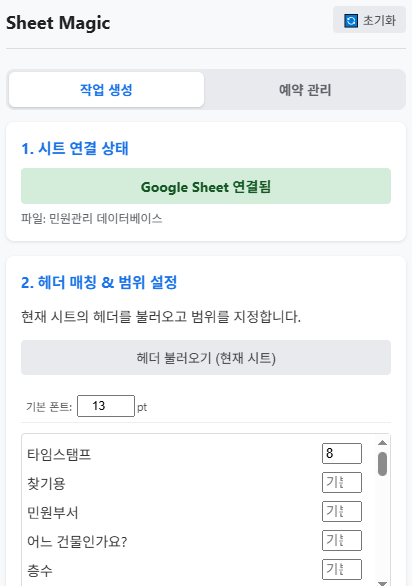
01 · CONNECT
Open a Google Sheet
Open the extension while a Google Sheet is active. Confirm the connection, load the headers, and set the row range and font sizes.
Fill Google Slides templates with Google Sheets data and generate PDF or PPT files from Chrome.
Set up the workflow once, then reuse it whenever you need to generate documents.
Open the extension while a Google Sheet is active. Confirm the connection, load the headers, and set the row range and font sizes.
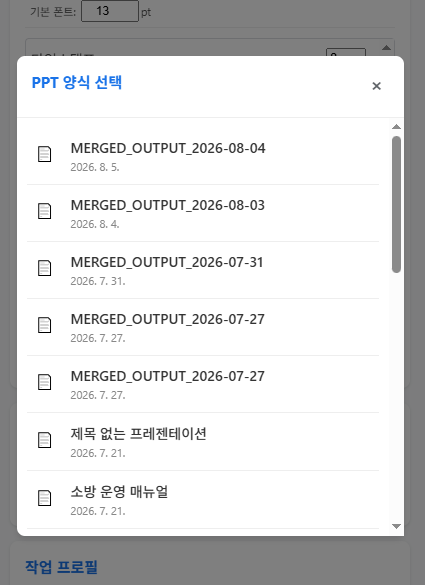
Choose the Google Slides file that contains the layout you want to fill. The selected template can be saved in a task profile.
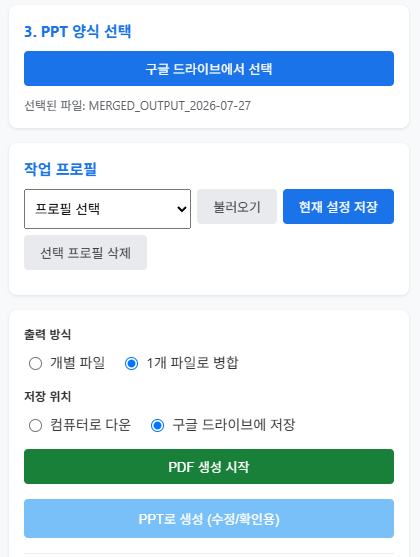
Save the row range, filters, grouping, fonts, output mode, and destination together. Load the profile next time instead of entering everything again.
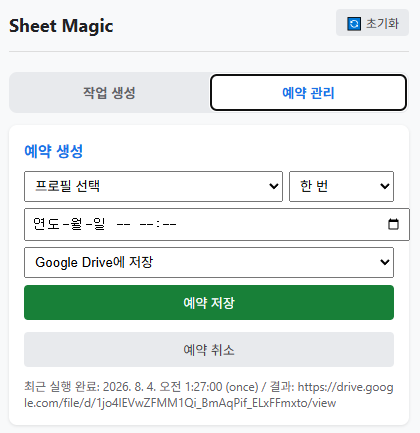
Select a saved profile, choose a frequency and destination, and review the latest result or retry status in Schedule Management.
Wrap a Sheet header in double angle brackets to insert the value from that column.
The first form inserts a value directly. The conditional form selects a value from the row that matches the condition. Header names must match the first row of the Sheet.
Save recurring work in the Generation tab. A profile stores the template, row range, filters, grouping, fonts, output mode, and destination.
After loading a profile, confirm the visible settings before generating. Reset clears ordinary settings but preserves saved profiles and schedules.
In Schedule Management, select a profile, frequency, time, and destination.